
In this article
- Setting Up Tyms with QuickBooks
- Sign Up and QuickBooks Authentication
- Initial Configurations and Business Profile Verification
- Choosing Your Data Management Option
- Syncing and Managing Financial Data
- Understanding the Sync Process
- Managing and Editing Transactions
- Viewing Key Financial Data
- Automating Bank Statement Processing
- Uploading PDFs and Automatic Categorization
- Creating and Managing Bank Accounts
- Best Practices for Bank Transaction Uploads
- Visualizing Data and Gaining Business Insights
- Creating Custom Dashboards
- Leveraging Dashboard Analytics
- Best Practices for a Successful Integration
- Conclusion
Managing business finances can often feel overwhelming, from scanning bank statements to entering transactions and ensuring every record is correct. With the power of AI, however, these challenges can be transformed into a streamlined, intelligent process. Tyms is here to simplify accounting by syncing with QuickBooks effortlessly, so you can focus on growing your business.
Thinking about leaving QuickBooks altogether? Compare your options in our guide to the 10 best QuickBooks alternatives for 2027.
Setting Up Tyms with QuickBooks
Sign Up and QuickBooks Authentication
Getting started is simple. On the Tyms platform, click the “Continue with QuickBooks” button to begin. If you already have a QuickBooks account, you’ll be redirected to sign in securely. Once logged in, Tymsconnects directly to your QuickBooks data, ensuring that your records are synchronized from the start.
Initial Configurations and Business Profile Verification
After authentication, you’ll be taken to your Tyms dashboard. Here, you may be prompted to complete the setup process. The system automatically pulls key business information—like your company name and address—from QuickBooks. It’s important to review and verify these details to ensure accurate reporting and smooth tax filings.
Choosing Your Data Management Option
When setting up the integration, you have several options for handling your data:
- Migrate Your Data: This option copies all historical records from QuickBooks into Tyms, giving you a complete history.
- Use Tyms Only: Start fresh with new transactions, without importing past data.
- Maintain Sync with QuickBooks: Keep your data fully connected. In this mode, Tyms imports historical data and continues to sync any new records added in QuickBooks automatically.
Most businesses choose to maintain sync, ensuring all financial records stay updated in real time.
Syncing and Managing Financial Data
Understanding the Sync Process
Once your accounts are connected, Tyms begins by pulling your trial balance and all historical transactions up until two days before the current date. For example, if you sync on April 15, records up to April 13 are imported. New transactions recorded in QuickBooks after the sync will update in Tyms within a day, keeping your books accurate and up to date.
Managing and Editing Transactions
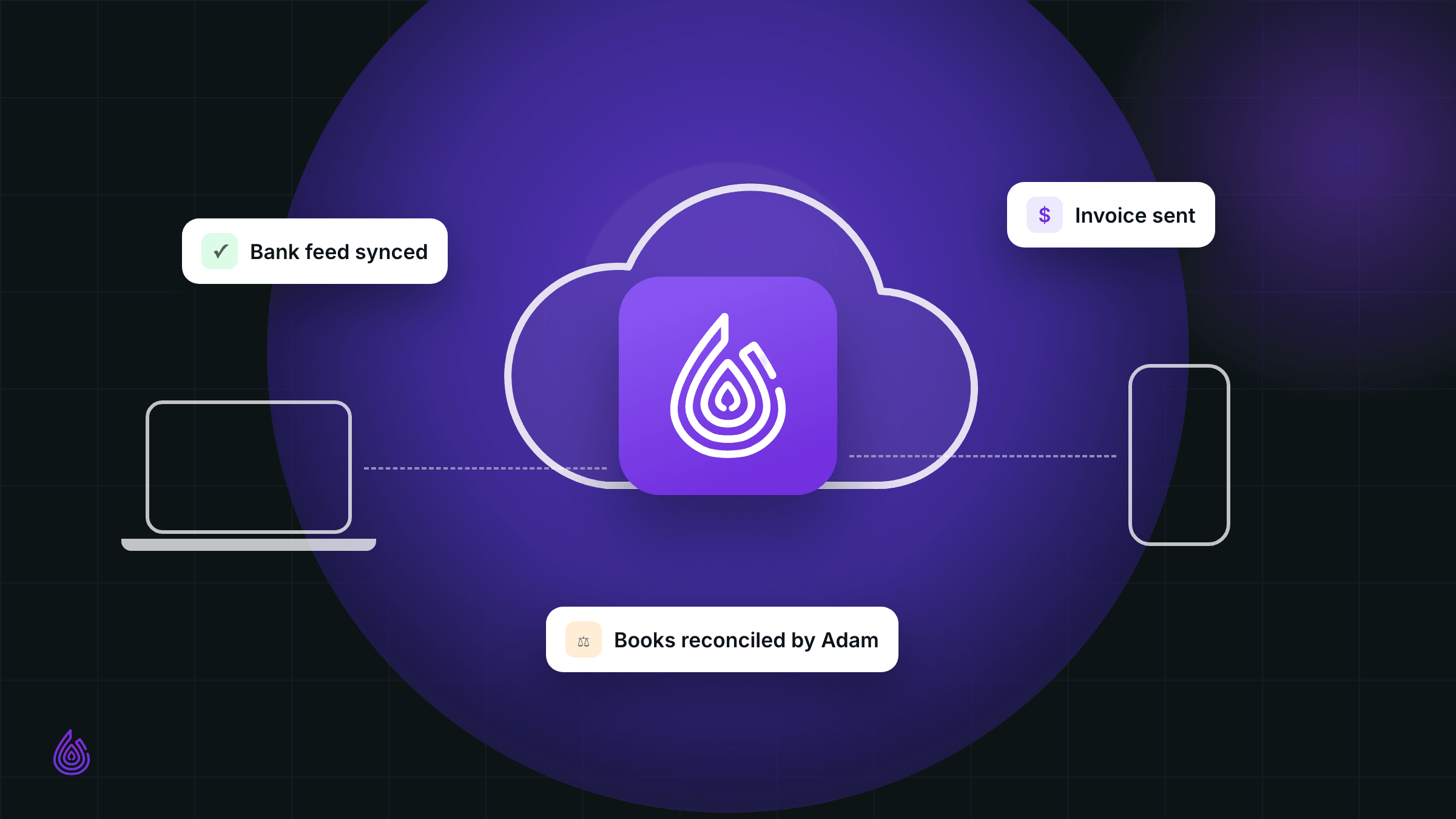
For the best results, edits should ideally be made in QuickBooks. When you update an entry in QuickBooks, Tyms promptly reflects these changes during the next synchronization. If you add a transaction directly in Tyms, it will sync back to QuickBooks. This bi-directional syncing ensures consistency across both platforms.
Viewing Key Financial Data
Within Tyms, you can access three core tables:
- Manual Journal Entries: Track transactions you enter manually.
- Bank Transactions: Review and categorize entries from your bank statements.
- Chart of Accounts: This list, imported from QuickBooks, helps maintain a structured view of all your accounts.
These tables provide a clear picture of your financial health and support efficient management.
Automating Bank Statement Processing
Uploading PDFs and Automatic Categorization
One of the standout features of Tyms is its ability to handle PDF bank statements. After uploading a statement, the system automatically reads and categorizes transactions, dramatically reducing manual data entry. You can set up categorization rules in advance so that every transaction is classified as needed, minimizing errors and saving valuable time.
Creating and Managing Bank Accounts
If Tyms detects a bank statement from an unrecognized bank, it automatically creates a new account entry for you. For existing accounts, simply select the appropriate one from your list. This automatic account creation simplifies your workflow and ensures that your banking information stays organized.
Best Practices for Bank Transaction Uploads
- Use dates that follow the last synchronized balance to ensure clarity.
- Batch your uploads when possible to save time.
- Regularly review categorized transactions to catch any discrepancies early.
Once the transactions are processed and categorized, they are added to your journals and then synced back to QuickBooks, ensuring a full-circle flow of data.
Visualizing Data and Gaining Business Insights
Creating Custom Dashboards
Beyond managing transactions, Tyms offers smart dashboards that provide a quick view of your business’s financial status. You can easily create a new dashboard to track key metrics like cash flow or revenue. The system analyzes your data and presents it in easy-to-read charts and cards that highlight trends and key performance indicators.
Leveraging Dashboard Analytics
The dashboards are designed not only to display data but also to help you uncover insights. For example:
- Spot Trends: Identify dips or spikes in cash flow in real time.
- Customize Views: Use filters to view data for specific periods.
- Drive Decisions: Gain a clear visual summary that informs strategic adjustments and planning.
Regularly refreshing your dashboard helps ensure that you always have the most up-to-date information at your fingertips.
Best Practices for a Successful Integration
- Regular Reviews: Frequently check your transaction categories, as well as the custom rules you’ve set, to maintain consistency.
- Keep Systems Updated: Ensure both QuickBooks and Tyms are updated to the latest versions to avoid any sync issues.
- Leverage Automation: Utilize recurring entry features and batch uploads for efficiency.
- Ensure Security: Maintain privacy by securely connecting your accounts and managing permissions carefully.
- Monitor Consistency: Regularly verify data accuracy by comparing information in QuickBooks with Tyms.
Conclusion
Integrating Tyms with QuickBooks transforms how you manage your business finances. This powerful AI-powered solution automates tedious manual tasks, ensures that your data is consistently synchronized, and provides actionable insights through smart dashboards. By reducing errors and saving time, Tyms lets you focus on the strategic growth of your business rather than getting bogged down in number crunching. Supercharge your QuickBooks experience with the future of accounting – and let AI do the heavy lifting.
Visit https://app.tyms.io/auth/register to get started now!
Watch the tutorial video here:
https://www.youtube.com/watch?v=NFDSKWGzg8c